The symptom
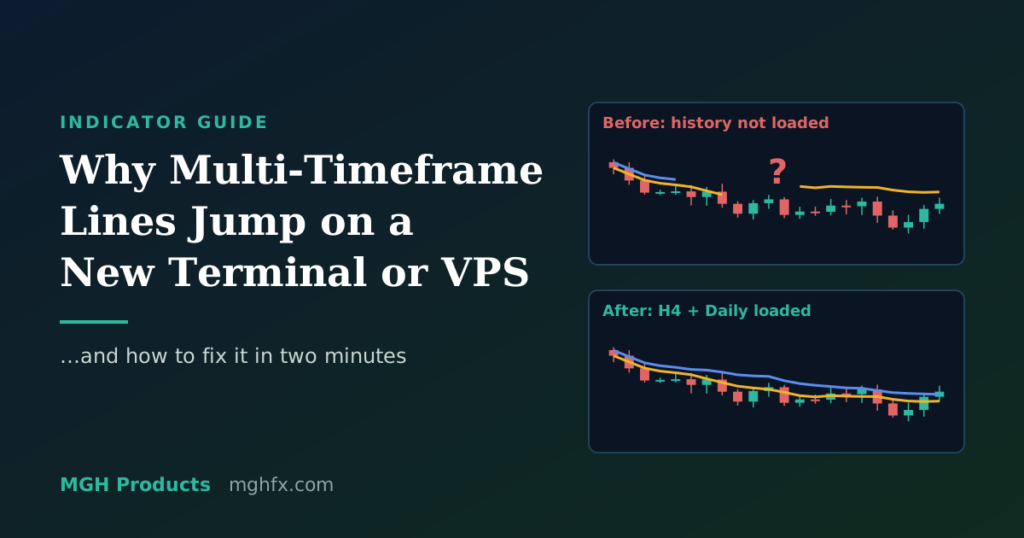
You install MetaTrader on a new computer or a fresh VPS, attach a multi-timeframe indicator such as Persian Ichimoku, and the lines look wrong. A few minutes later they move, redraw, or part of them disappears. On your home computer the same indicator, with the same settings, looks perfect.
Nothing is wrong with the indicator. The terminal simply does not have the price history yet.
Why it happens
MetaTrader does not download the full history of every symbol and timeframe in advance. It downloads data only when something asks for it — usually when you open a chart.
A multi-timeframe indicator reads data from timeframes other than the chart you are looking at. For example, an H1 chart may need H4 and Daily data. On a new terminal that data is missing or incomplete, so:
- The indicator draws with the little data it has.
- The terminal starts downloading the missing history in the background.
- When the data arrives, the indicator recalculates, and the lines move to their correct place.
This happens most often on a new VPS, a new broker account, a symbol you have never opened before, or after the terminal’s history folder was cleared.
How to fix it
- Open the timeframes the indicator uses. For the symbol you trade, open a chart on each higher timeframe the indicator reads (for example H4, Daily and Weekly). Wait a few seconds on each one.
- Load more history. On each of those charts, press the Home key (or scroll left) a few times until the chart stops loading older candles.
- Check the bar limit. In Tools → Options → Charts, make sure Max bars in chart (MT5) or Max bars in history / in chart (MT4) is large enough — 50,000 or more is a good starting point.
- Refresh the indicator. Go back to your working chart and switch the timeframe once and back, or right-click the chart and choose Refresh. The indicator recalculates with the complete data.
You only need to do this once per symbol on a new terminal. After that, MetaTrader keeps the history up to date on its own as long as the terminal runs.
Tip for VPS users
If you run indicators or Expert Advisors on a VPS, do the steps above right after setting the VPS up, before you rely on any alert. A VPS that has been running for a few days with the charts open usually has all the history it needs.