The short answer
Our indicators check your licence or free trial online. To do that they use libraries that are built into every copy of Windows: wininet.dll to reach our server over the internet, and advapi32.dll and kernel32.dll to create the hashed computer ID. MetaTrader only lets a program use Windows DLLs when DLL imports are allowed. We do not install or ship any DLL of our own.
How to turn it on
DLL imports must be allowed in two places:
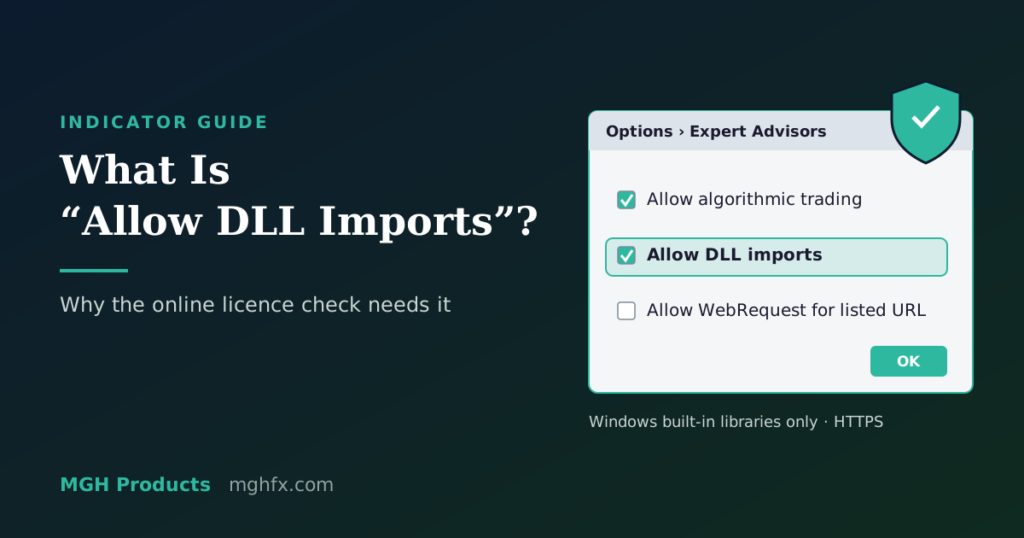
- In the terminal: open Tools → Options → Expert Advisors and tick Allow DLL imports. Click OK.
- For the indicator: drag the indicator onto the chart. In the window that opens, go to the Common tab (MT4) or the Dependencies tab (MT5), make sure Allow DLL imports is ticked, and click OK.
If DLL imports are not allowed, the indicator shows the message “MGH: enable “Allow DLL imports” (Tools > Options > Expert Advisors) and re-attach” instead of its lines. After changing the setting, remove the indicator from the chart and attach it again.
Is it safe?
A DLL is a library of program code. Allowing DLL imports for an unknown program is a real risk, because that program could call any library on your computer. That is why MetaTrader asks you first. Only allow DLL imports for programs from sources you trust.
Our indicators call only the three Windows system libraries above, and only to build the hashed computer ID and send the licence check to our server over a secure (HTTPS) connection.
What the licence check sends
Each check sends:
- your MetaTrader account number,
- your broker’s company name and server,
- a hashed (one-way, unreadable) computer ID,
- and, like any internet request, your IP address.
It does not read your trades, balance, passwords, files or anything else on your computer. Full details, including how long we keep this data, are in our Privacy Policy.
How often does it check?
The indicator checks when it loads and then about once a day. The signed answer is saved on your computer, so a short internet outage does not stop the indicator.
Still not working?
- Make sure Allow DLL imports is ticked in Tools → Options → Expert Advisors and for that indicator, then re-attach it.
- Make sure the account number you entered on the website is the one logged in to the terminal.
- Check that the terminal has an internet connection.
If it still shows a licence message, contact us with a screenshot of the message and your account number.